User Guide
Learn how to create effective lead-generation quizzes
Table of Contents
1. Getting Started
KwizGen helps you create engaging lead-generation quizzes in minutes. No coding required!
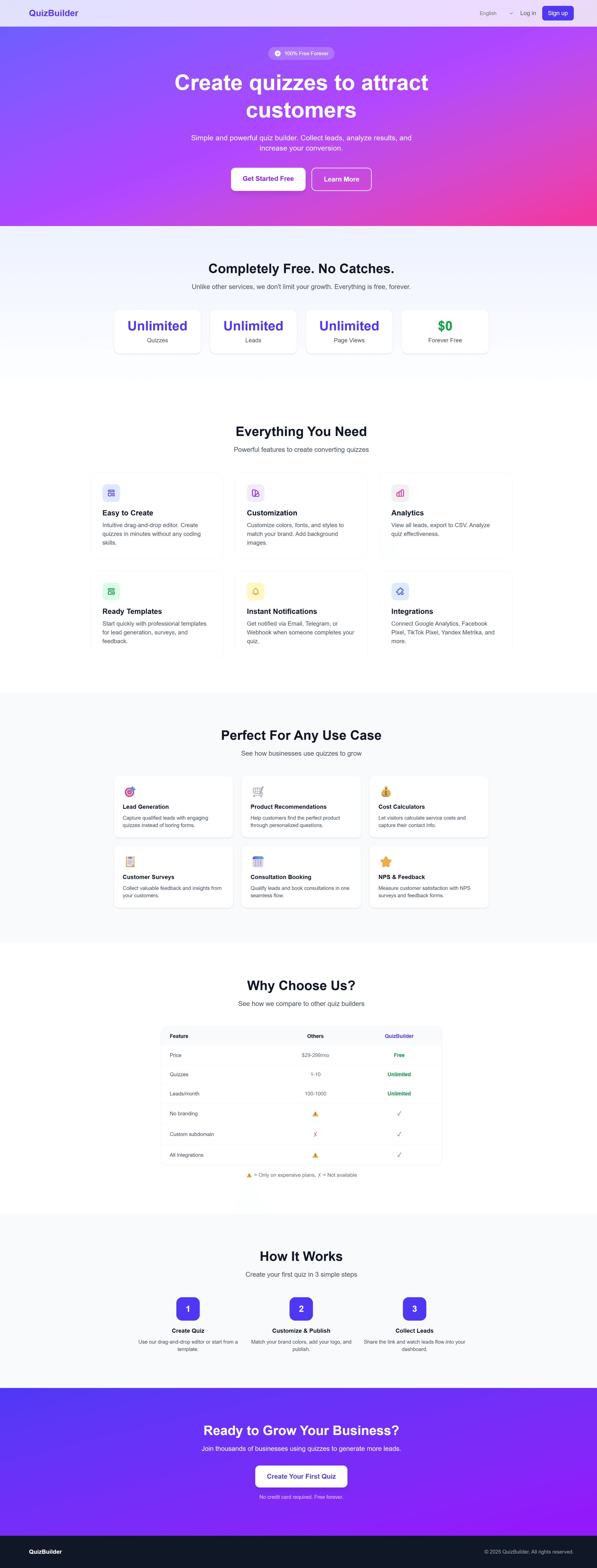
Quick Start:
- Create an account or log in
- Choose a template or start from scratch
- Customize, publish, and collect leads
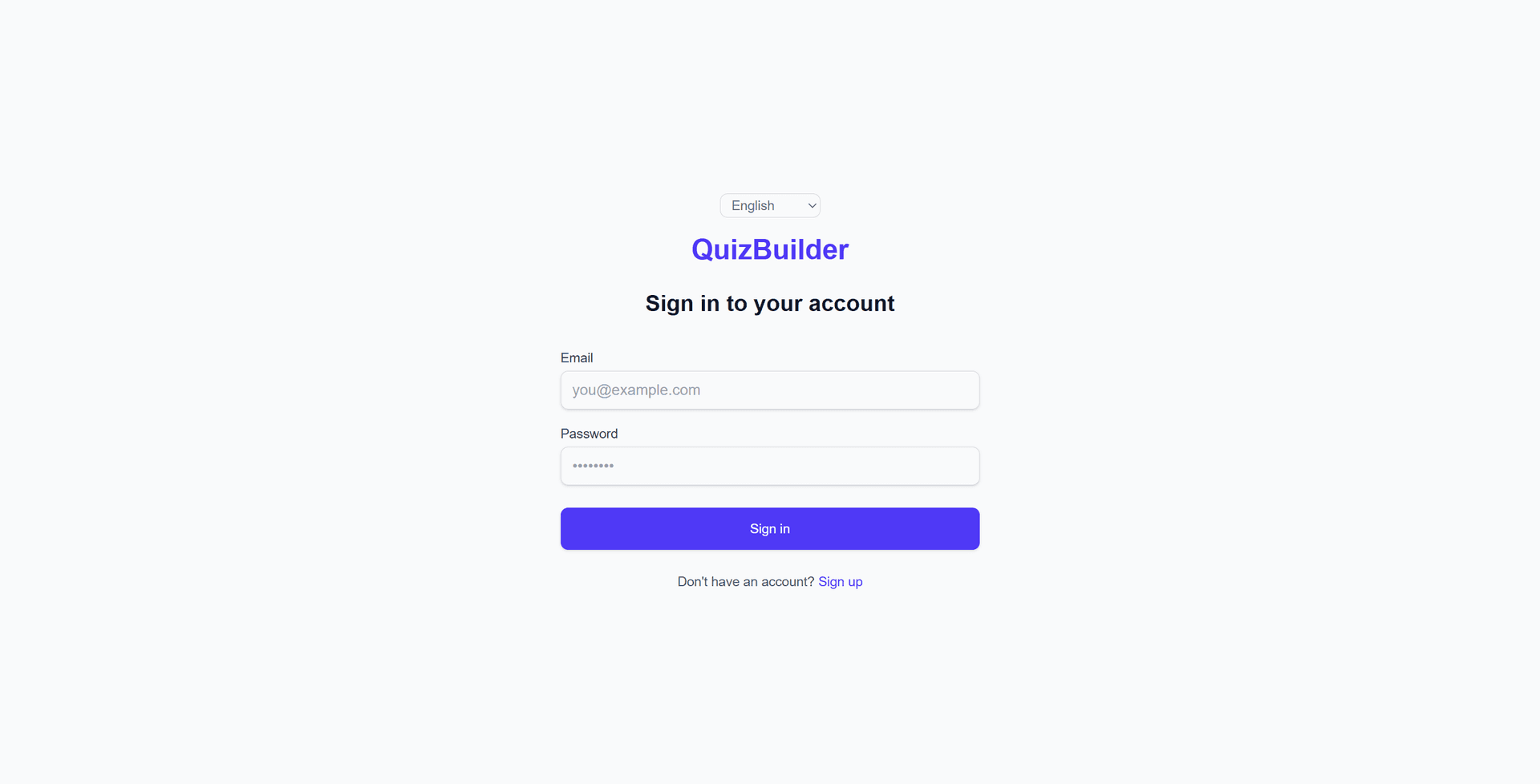
Login page
2. Dashboard
The dashboard is your central hub for managing all quizzes.
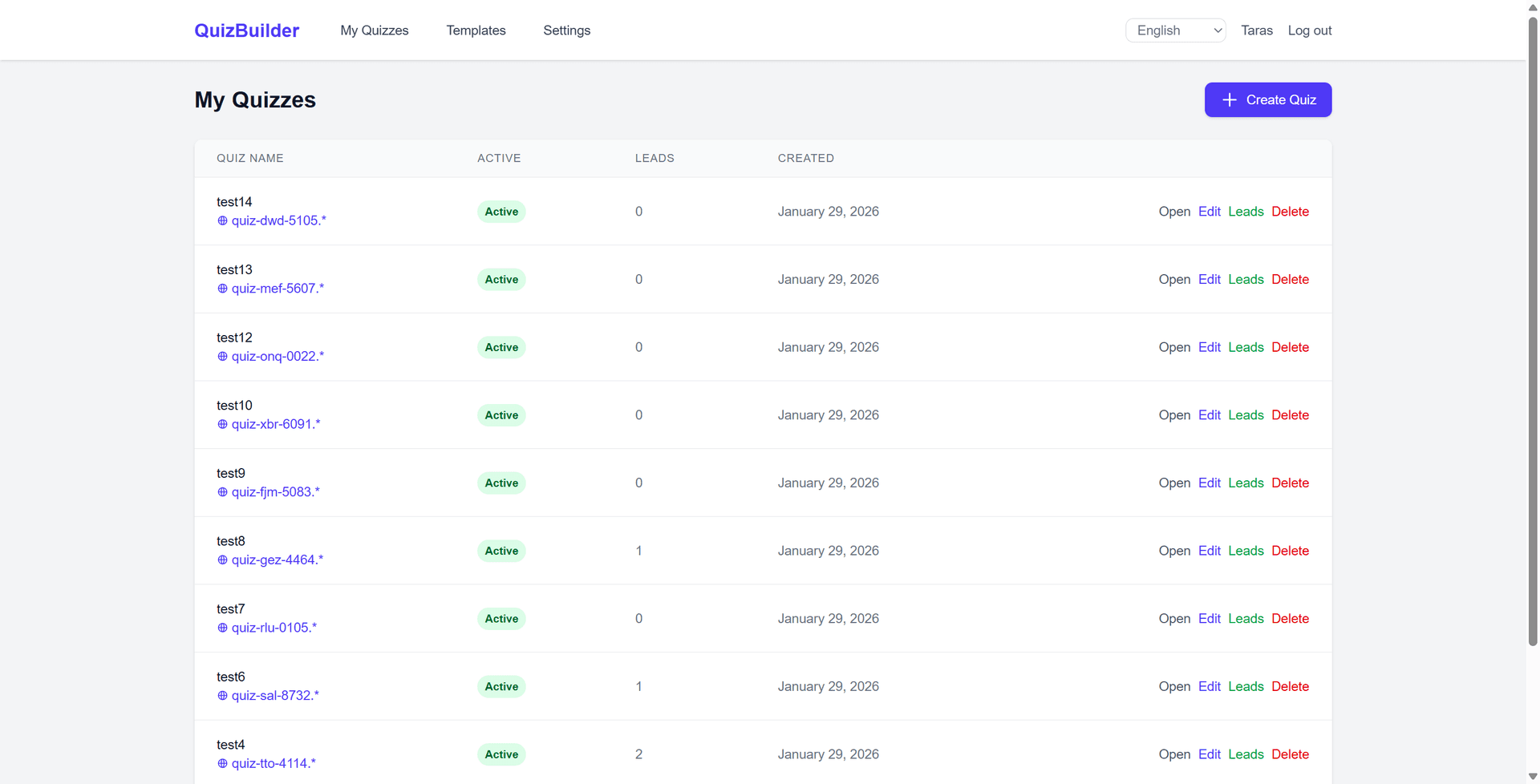
- View all your quizzes with their status (active/inactive)
- See lead counts for each quiz
- Quick actions: Open, Edit, View Leads, Delete
- Create new quizzes with the + button
3. Creating a Quiz
There are two ways to create a new quiz:
From a Template
Choose from pre-built templates for various use cases like lead generation, surveys, and feedback forms.
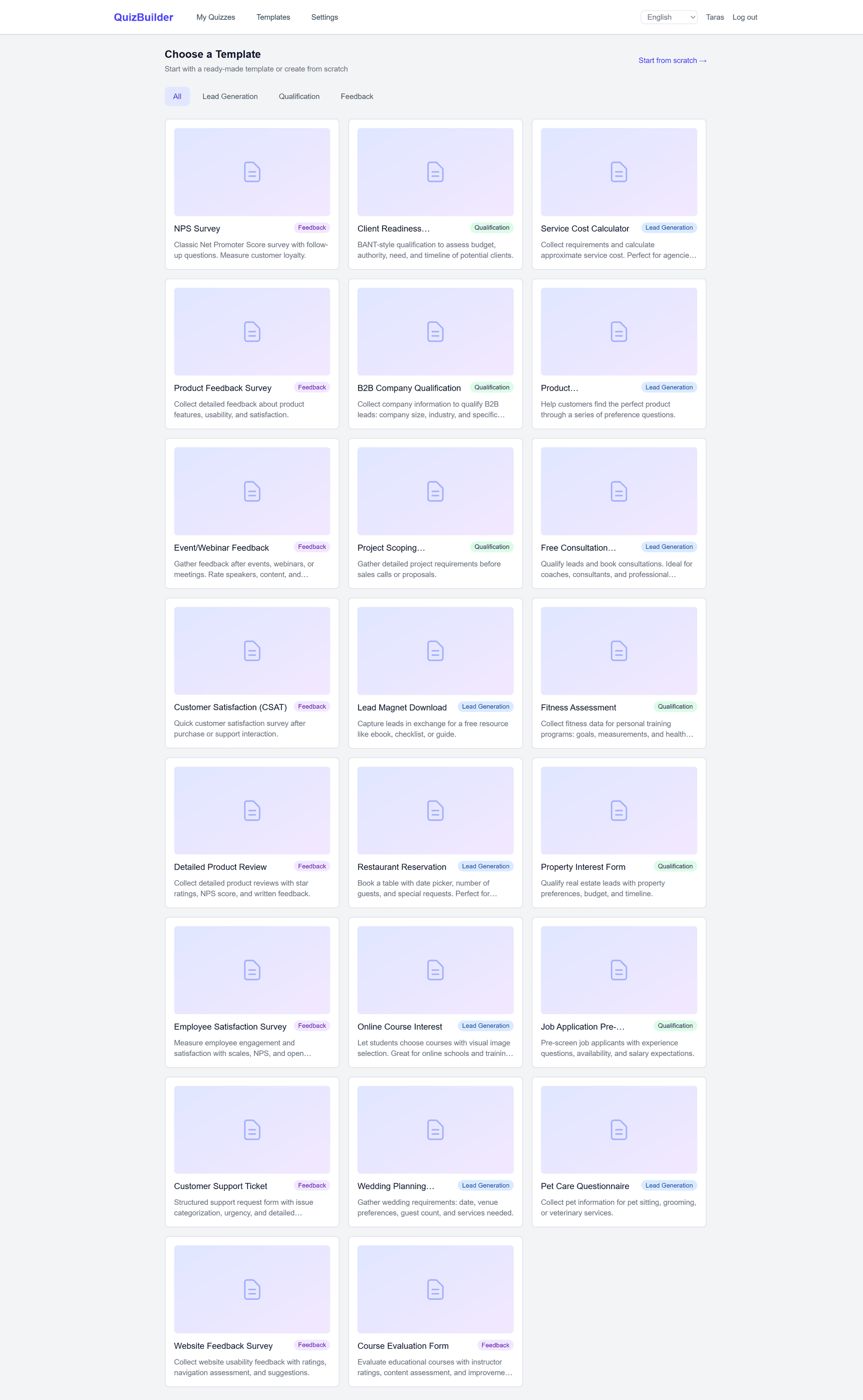
From Scratch
Start with a blank quiz and build it step by step with our drag-and-drop editor.
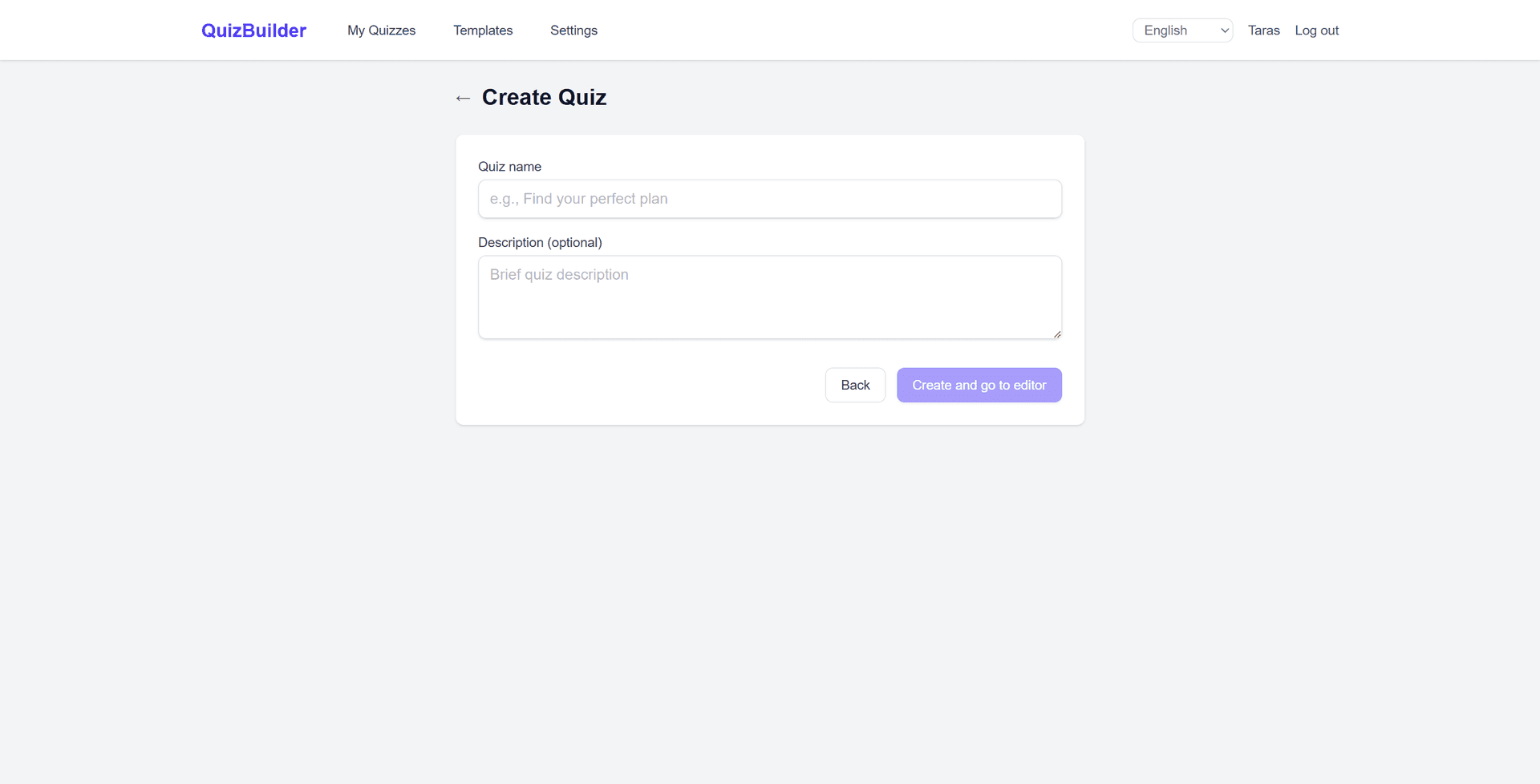
4. Quiz Editor
The quiz editor features a drag-and-drop interface with a live preview. Add steps, fields, and customize your quiz in real-time.
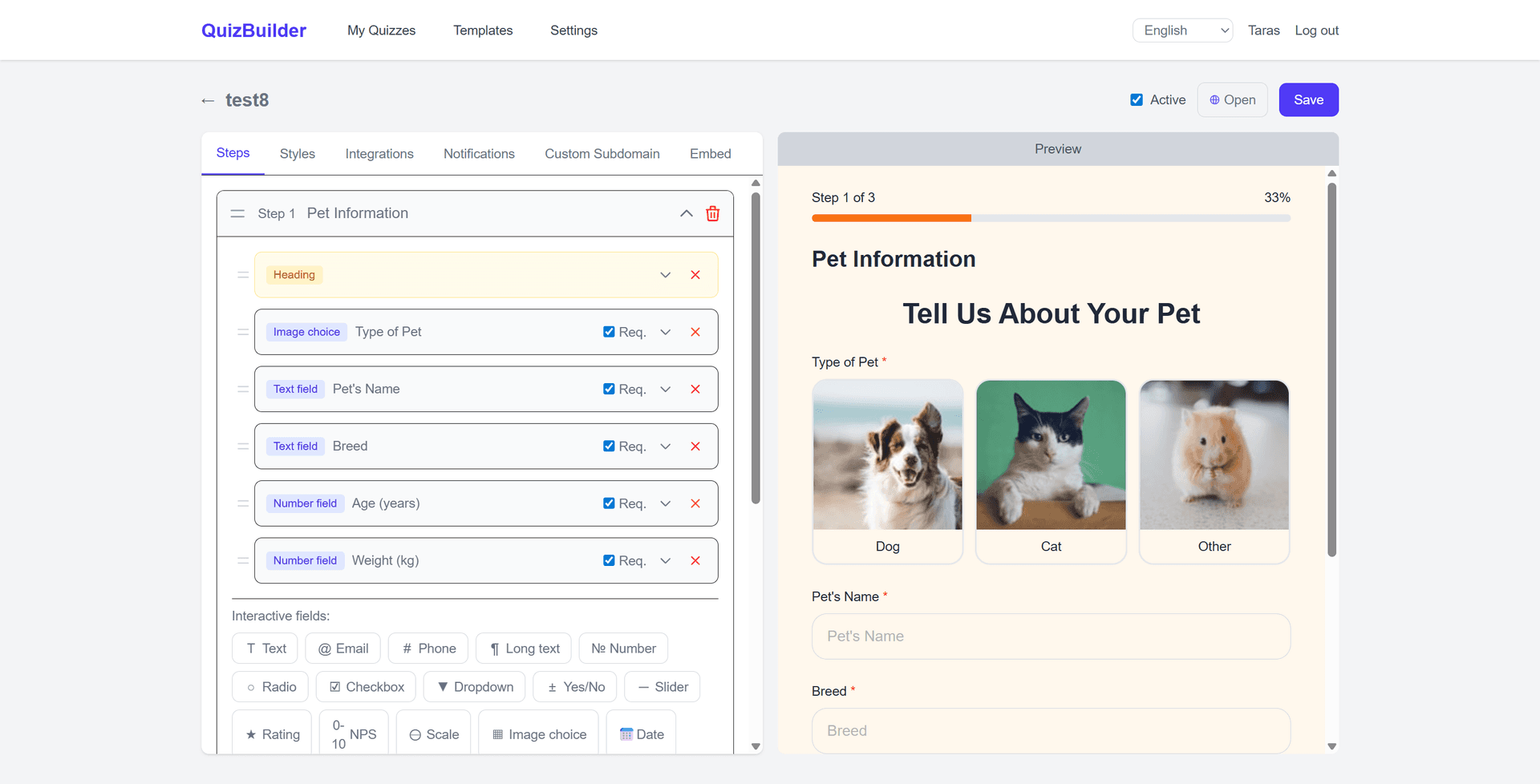
Quiz Editor - Steps Tab
Interactive Field Types:
Static Elements:
5. Styling Your Quiz
Customize your quiz appearance in the Styles tab:
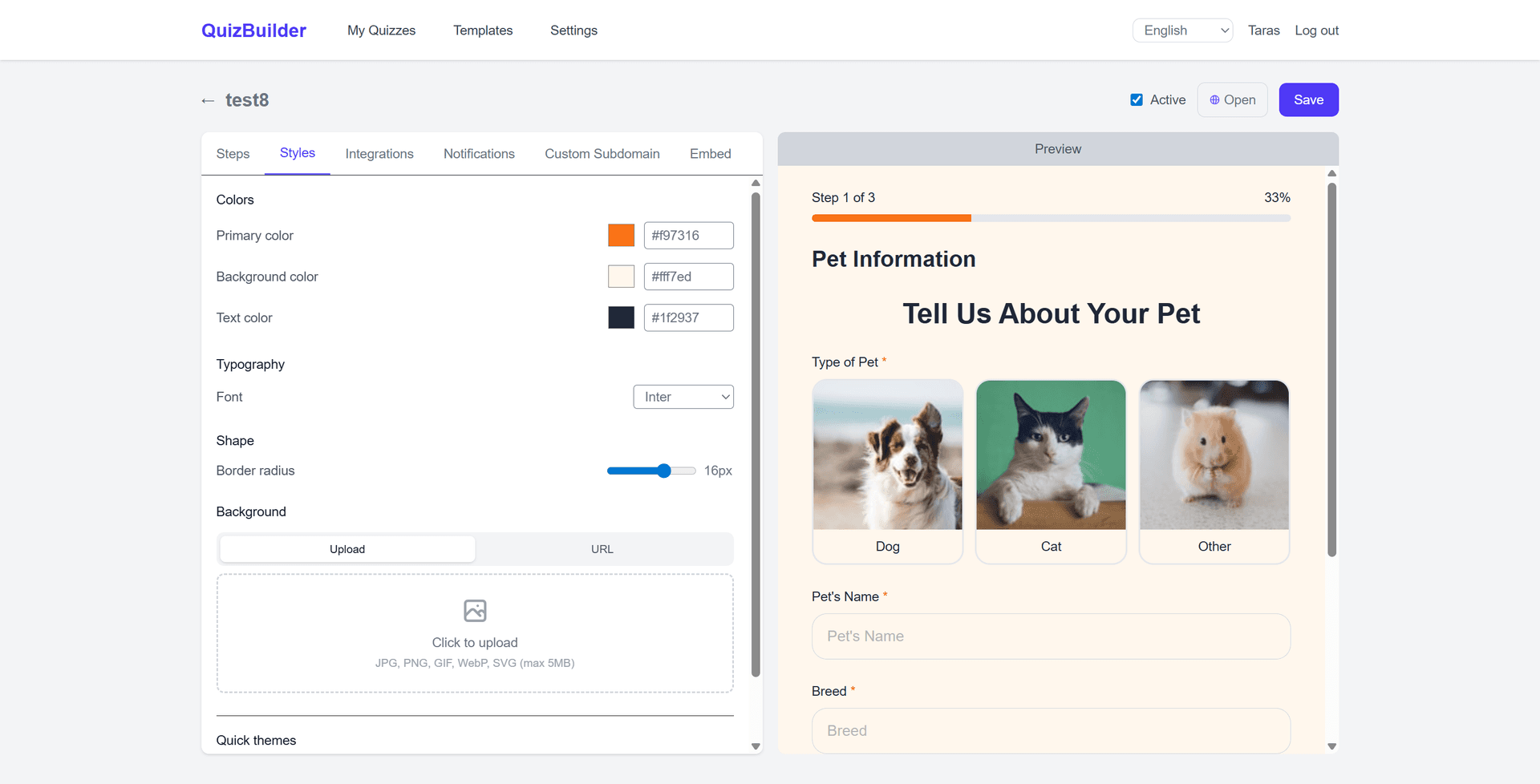
Quiz Editor - Styles Tab
- Colors: Primary, background, and text colors
- Typography: Choose from 5 font families
- Shape: Adjust border radius (0-32px)
- Background: Upload custom images
- Quick themes: Apply pre-configured color schemes
6. Analytics Integrations
Connect your quiz with popular analytics platforms to track user behavior and conversions:
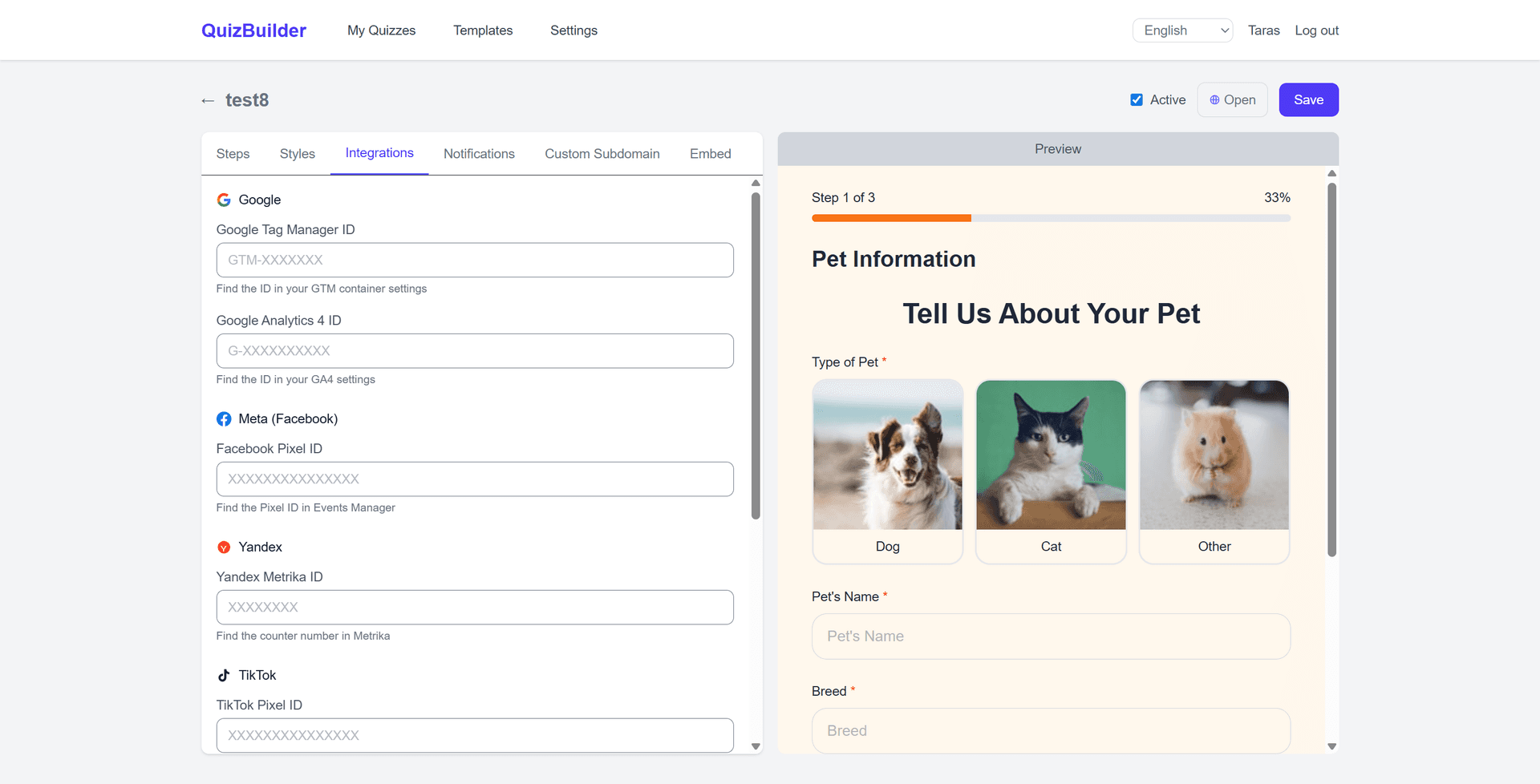
Quiz Editor - Integrations Tab
7. Conversion Tracking
KwizGen automatically sends tracking events to your analytics platforms when users interact with your quizzes. Use these events to set up conversion tracking in Google Ads, Meta Ads, TikTok Ads, and other advertising platforms.
Available Events
| Event | When Triggered | GTM / GA4 | Meta Pixel | TikTok Pixel |
|---|---|---|---|---|
| Quiz Start | User opens the quiz | quiz_start | ViewContent | ViewContent |
| Quiz Step | User navigates to a new step | quiz_step | QuizStep | — |
| Quiz Complete | User finishes all steps | quiz_complete | CompleteRegistration | CompleteRegistration |
| Lead Submit | Lead successfully submitted | lead_submit | Lead | SubmitForm |
Event Data
Each event includes the following data parameters:
{
  quiz_id: "abc123",        // Unique quiz identifier
  quiz_title: "My Quiz",    // Quiz name
  step_number: 2,           // Current step (for quiz_step)
  total_steps: 5,           // Total number of steps
  progress_percent: 40,     // Completion percentage
  has_email: true,          // Contact info flags (for lead_submit)
  has_phone: true,
  has_name: false
}
Setting Up Conversions
Google Ads
- Go to Google Ads → Goals → Conversions
- Create a new conversion action
- Select "Import" → "Google Analytics 4 properties"
- Choose the
lead_submitorgenerate_leadevent
Meta (Facebook) Ads
- Go to Meta Events Manager
- Select your Pixel
- The
Leadevent will appear automatically - Create a Custom Conversion for
QuizCompleteif needed
TikTok Ads
- Go to TikTok Ads Manager → Assets → Events
- Select your Pixel
- The
SubmitFormevent will appear automatically - Use this event as your conversion goal in campaigns
Pro Tip
For best results, use the lead_submit event as your primary conversion. This ensures you only count actual leads, not just quiz views or partial completions.
8. Notifications
Get notified instantly when someone completes your quiz:
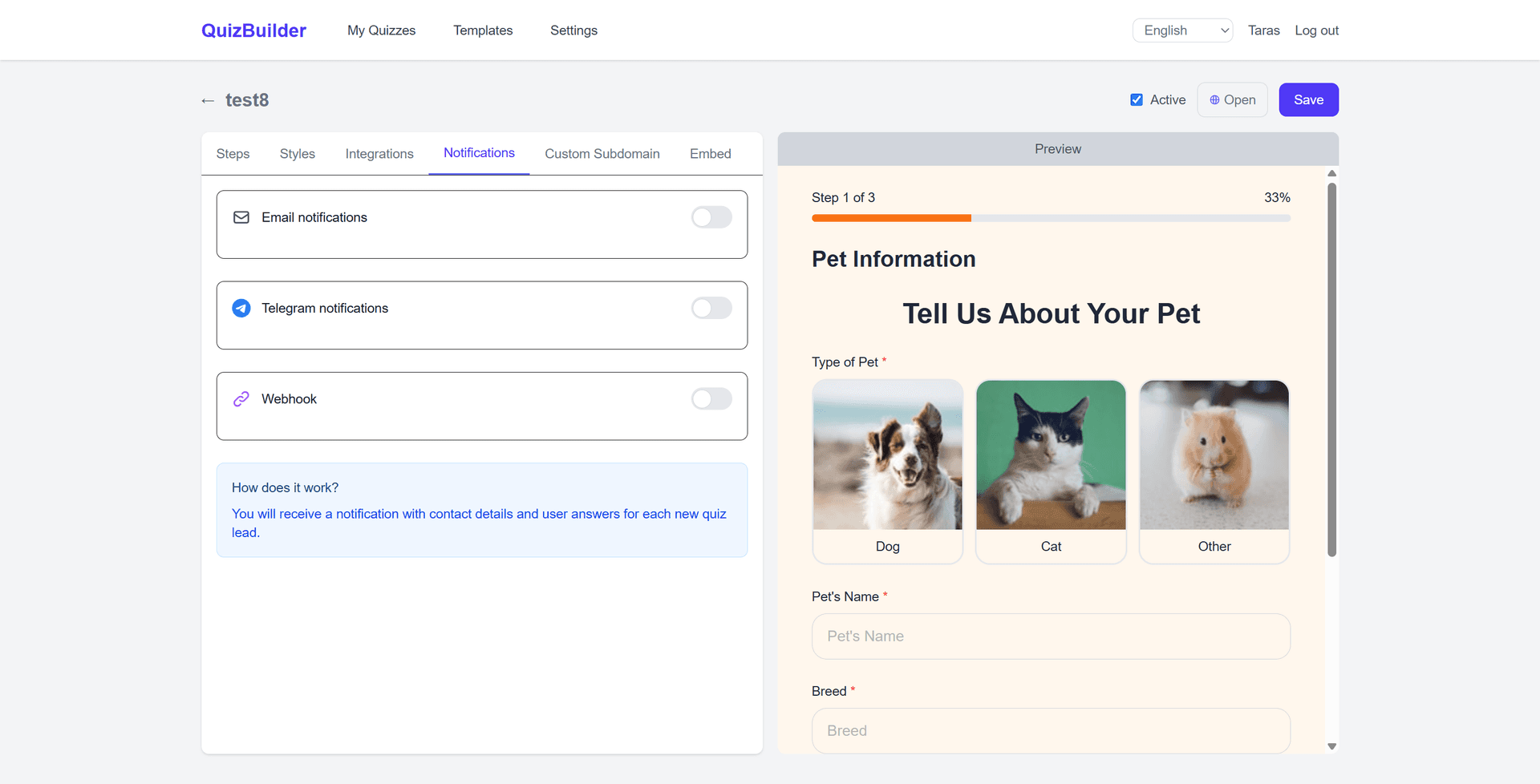
Quiz Editor - Notifications Tab
Receive leads directly to your email inbox
Get instant messages via Telegram bot
Send lead data to your own server or third-party services
9. Custom Subdomain
Give your quiz a professional, branded URL with a custom subdomain:
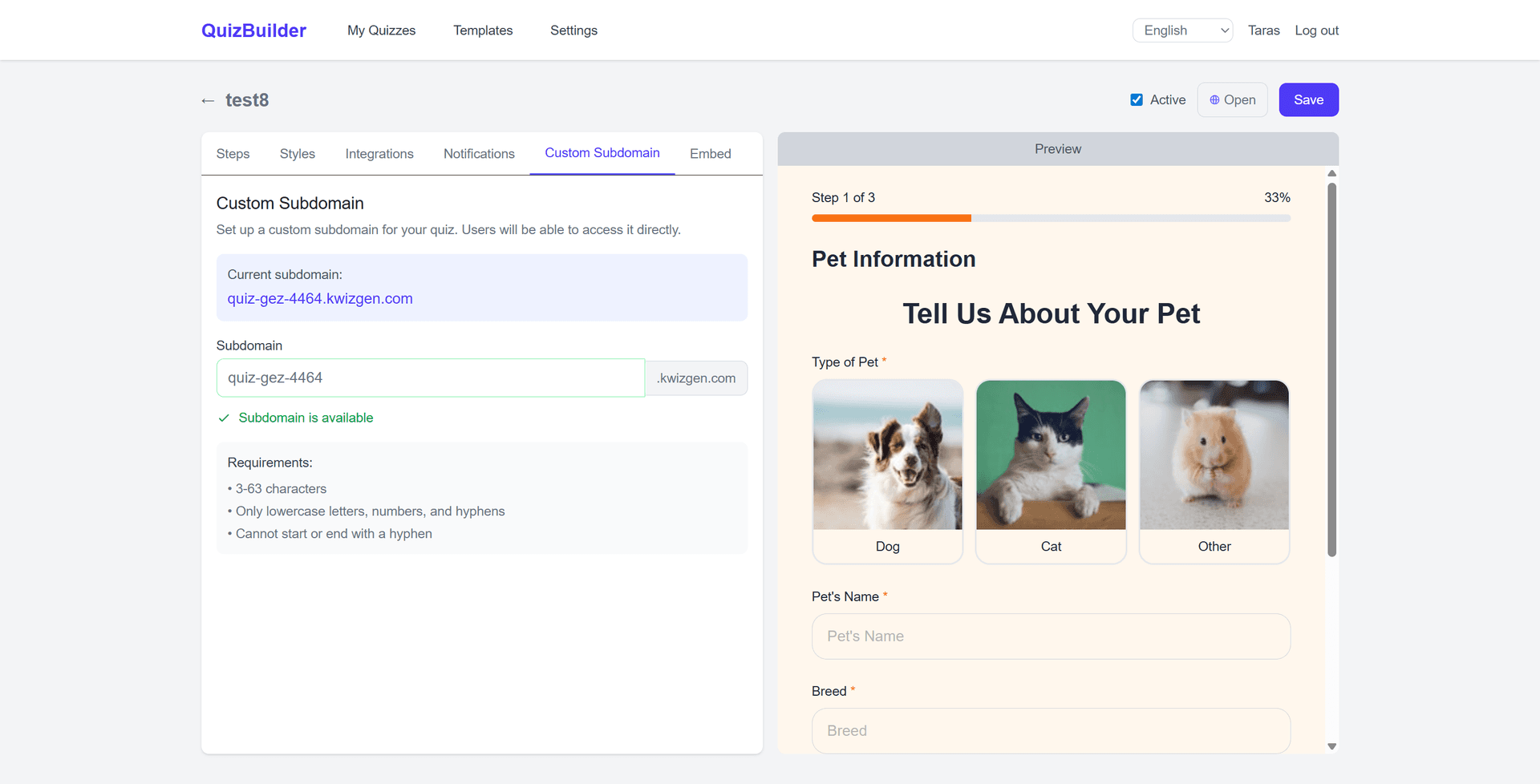
Quiz Editor - Custom Subdomain Tab
your-quiz.kwizgen.com
Requirements: 3-63 characters, lowercase letters, numbers, and hyphens only
10. Embedding Quizzes
Embed your quiz on any website using two methods:
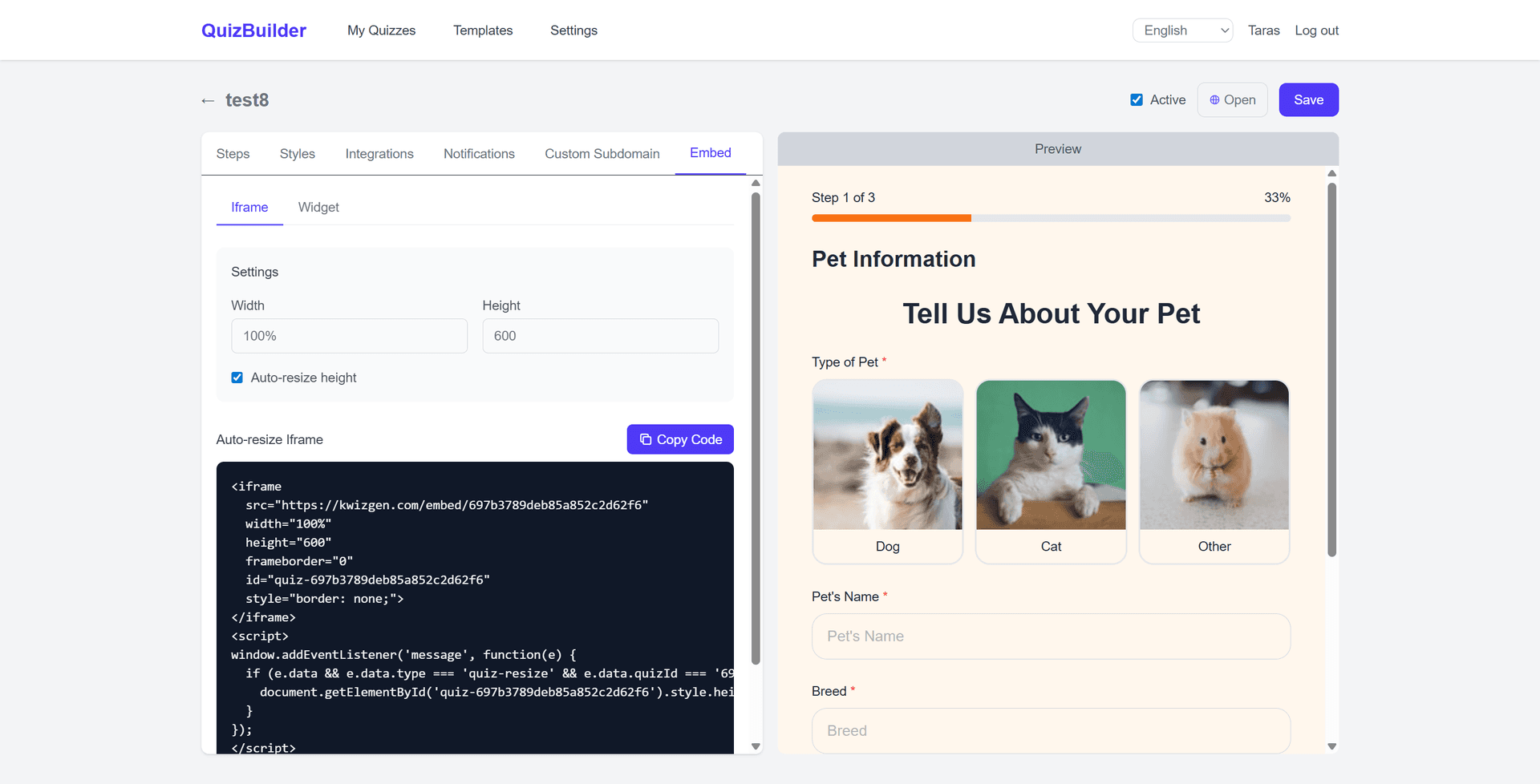
Iframe Embed
Copy the iframe code with auto-resize support and paste it into your website.
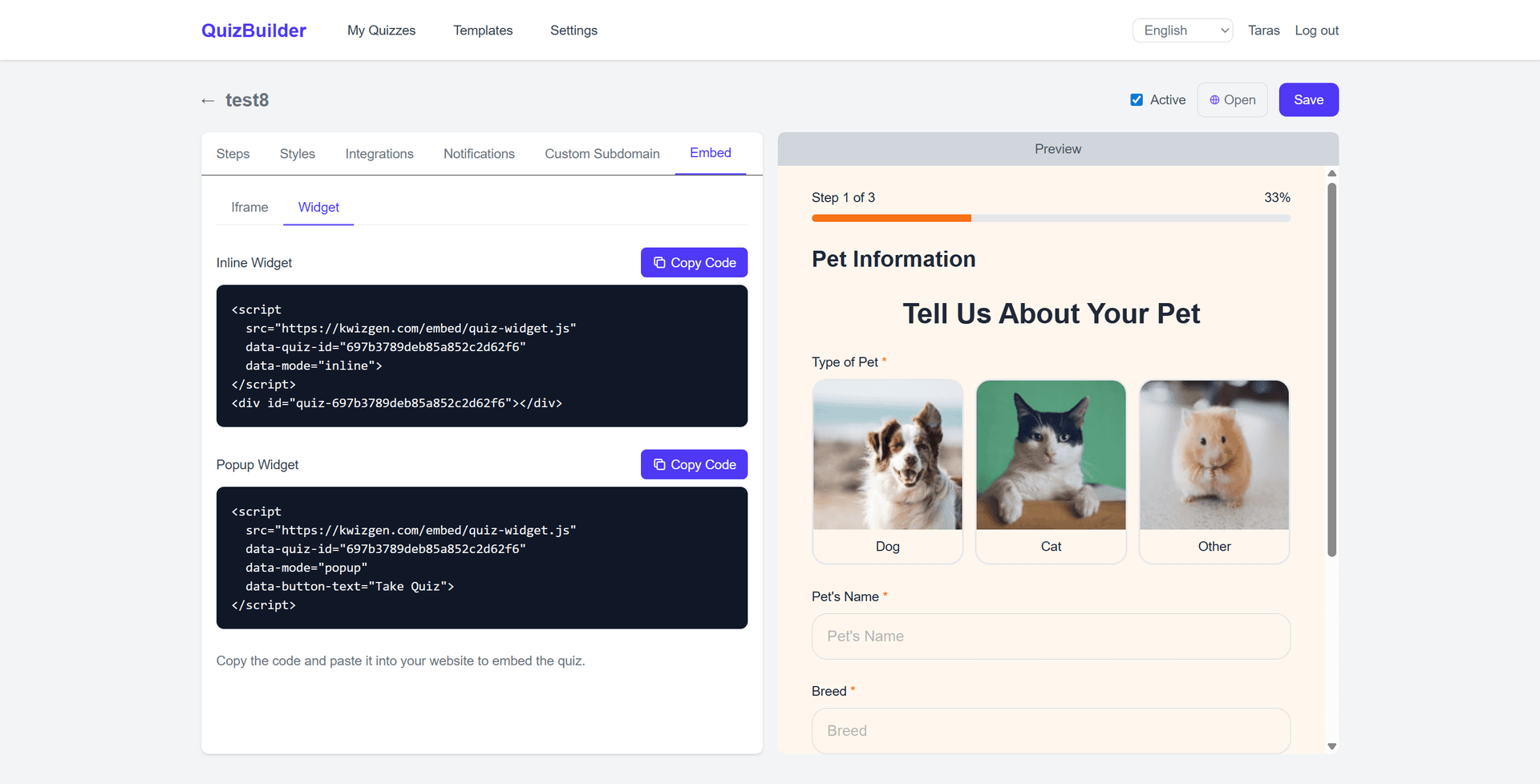
JavaScript Widget
Use inline or popup mode for more control over how the quiz appears.
11. Managing Leads
View and manage all collected leads from your quizzes:
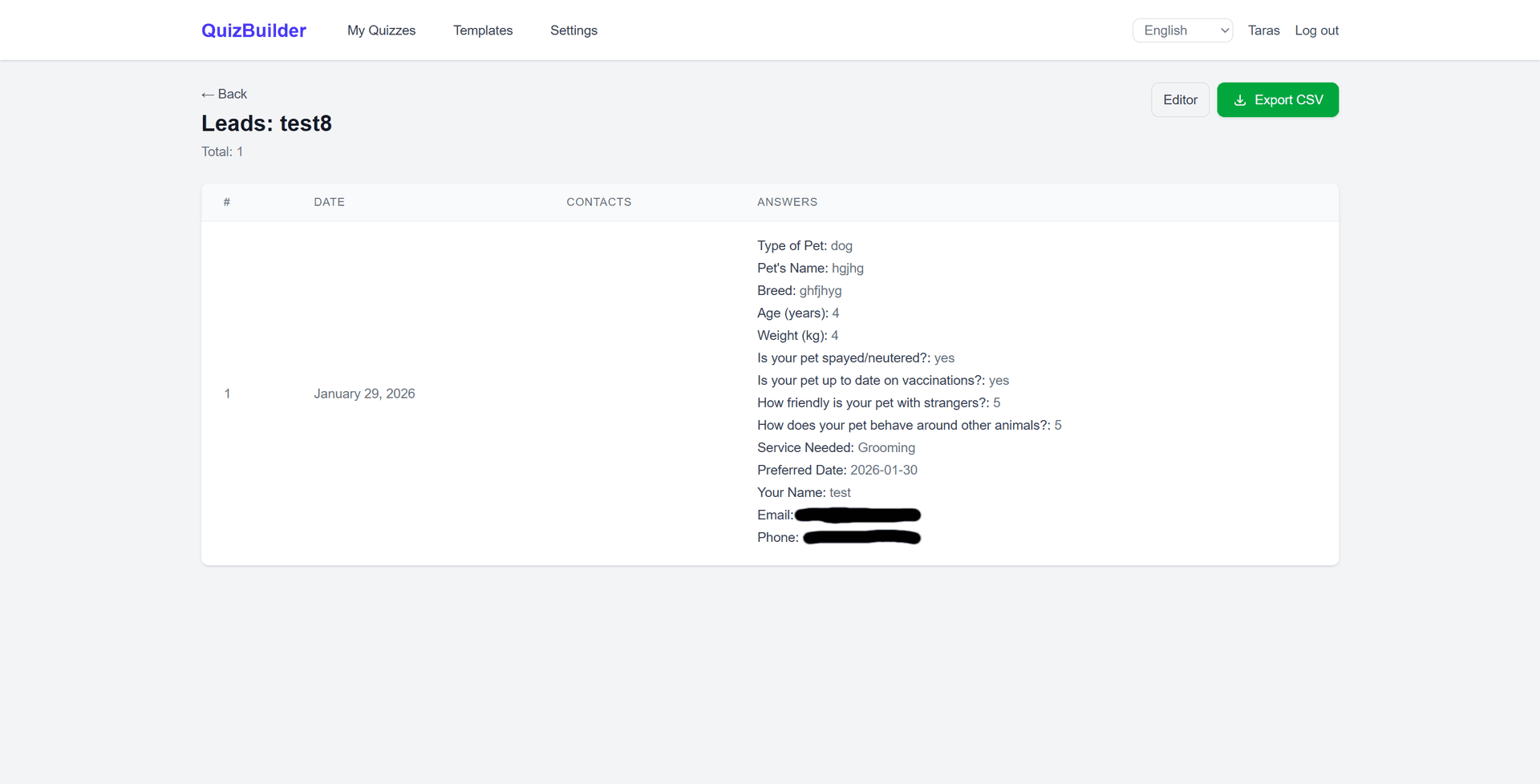
Leads Management Page
- See all submissions with contact details and answers
- Export leads to CSV for use in spreadsheets or CRM
- Pagination for easy navigation through large datasets
12. Scoring System
Add scoring to your quizzes to create tests, assessments, and personality quizzes with personalized results:
- Assign points to each answer option
- Configure different result screens based on score ranges
- Optionally show the user's score on the result screen
- View scores for each lead in the leads table
Use Cases
Scoring is perfect for educational tests, personality quizzes, knowledge assessments, product recommendations based on answers, and any quiz where you want to show different results based on user responses.
Live Quiz Preview
Here's how your quiz appears to users:
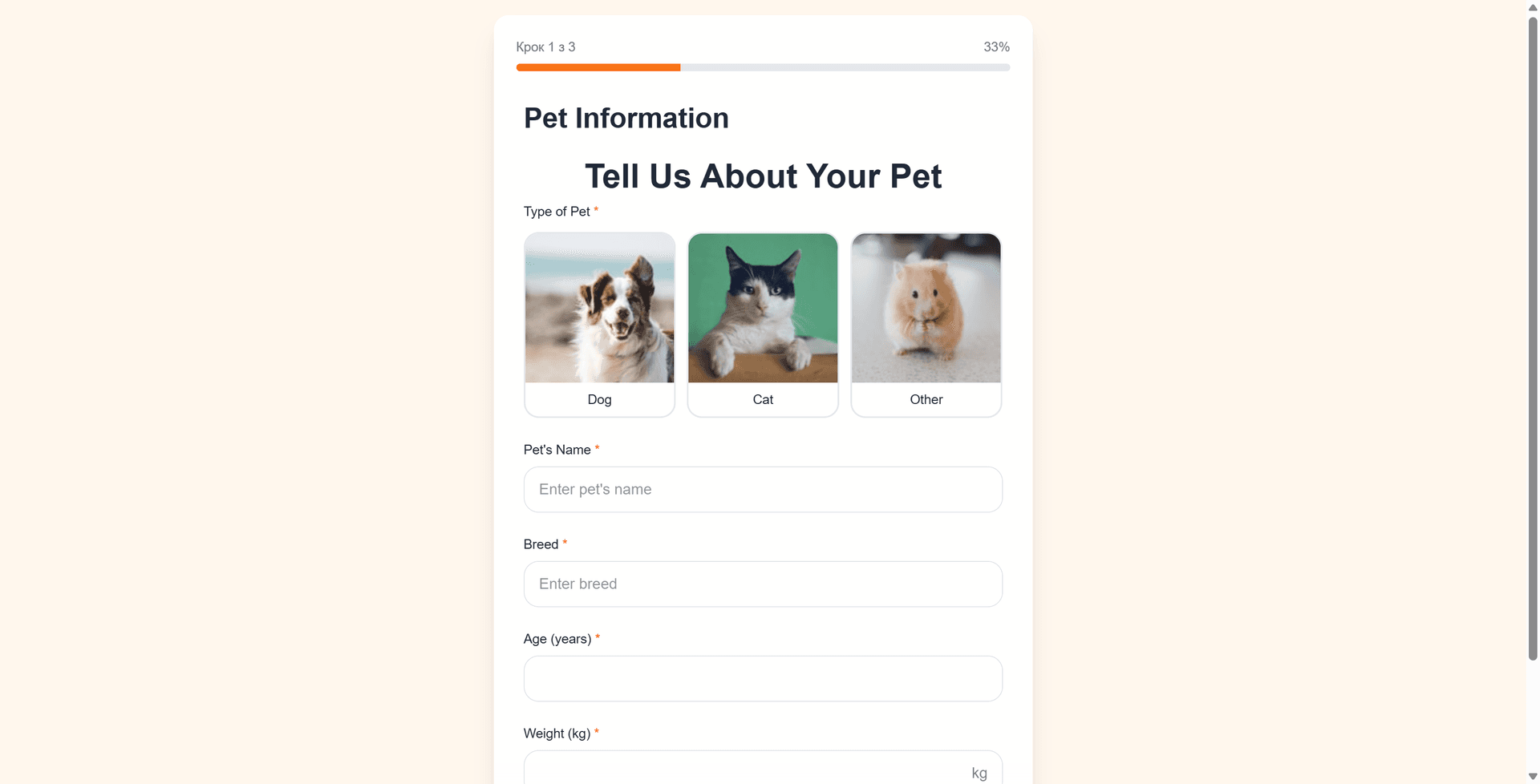
User-facing Quiz Experience
Tips for Success
- 💡Keep quizzes short: 5-10 questions have the highest completion rates
- 🎨Use visuals: Image choice fields increase engagement
- 📊Track performance: Use analytics integrations to monitor completion rates
- 🔔Enable notifications: Never miss a new lead